Using PowerShell In Visual Studio Code
I recently built a new PC and did a clean Windows 10 install. As a result, I had to reinstall VSCode and everything else. I use PowerShell as my prefered shell in VSCode and encountered an error I sort of remember from when I did my last fresh install.

The error in my case reads File C:\Users\dwayn\AppData\Roaming\npm\yarn.ps1 cannot be loaded because running scripts is disabled on this system. For more information, see about_Execution_Policies at https:/go.microsoft.com/fwlink/?LinkID=135170.
Your error might differ from mine, but I was trying to globally install Yarn via Npm and then run it. To fix the issue, it’s quite simple.
Open up a PowerShell terminal and run it as an administrator (right-click, run as administrator) and run the following command:
Set-ExecutionPolicy –ExecutionPolicy RemoteSigned
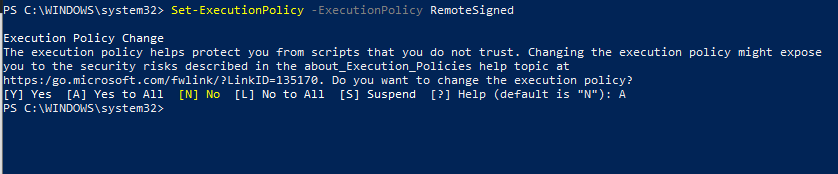
It’ll give you a warning and ask if you want to change the execution policy, enter A to answer yes to all. That’s it, that should now all you to run Node packages that have been installed globally and fix any other issues around the building of packages.
Comments