Koala: Screen Recording Without the Subscription
I’ve built another Mac app. This one’s called Koala, it’s a screen recorder and editor, and it’s 100% free.
You can record your screen, add a webcam, zoom into the bits people need to see, generate captions and export the finished video. The editor’s included. You don’t get to the export button and discover that finishing the job requires a subscription.
And yes, it has a koala. I’m Australian. Eventually this was going to happen.
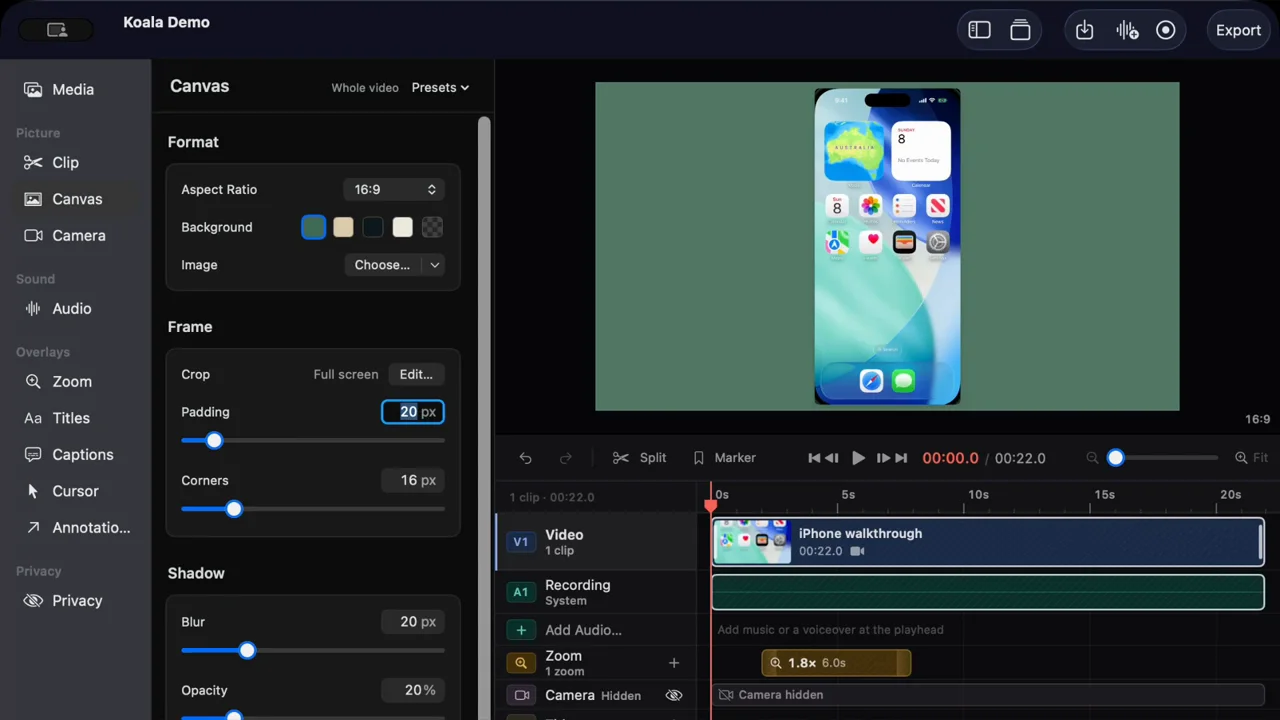
The Mac app editing an iOS Simulator recording. Click a screenshot to open it at full size, or watch the recordings on the Koala website.
Beyond pressing Record
Your Mac already has a screen recorder built in. Press Shift-Command-5 and you can capture a video without installing anything. If you need to show someone a bug, that might be the entire job.
A product demo asks a bit more of the recording. Someone needs to follow what you’re doing, read the button you’re clicking and survive the part where you’re waiting for something to load. A full desktop shrunk into a video player can make a perfectly readable interface look like an eye test.
Koala records the footage and gives you somewhere to edit it into a video people can follow, without taking the recording on a tour of three other applications first.
You can capture a whole display, a particular window or an area you drag out yourself. There’s also an iOS Simulator source for recording app walkthroughs. You can choose 24, 30 or 60 frames per second, include system audio, and select a microphone or webcam if you want them. Both the microphone and camera start off disabled.
During recording, a small floating bar gives you pause, stop and cancel. Koala keeps its own controls out of the capture. There’s even a floating notes panel you can read while recording without including it in the video, which is useful if remembering your next sentence and operating a computer are competing for the same brain cell.
Stop the recording and it opens in the editor. By default, projects are saved in ~/Movies/Koala.
Make the details readable
You can add a zoom manually and choose its focus, scale and timing, or use recorded clicks to suggest places where a zoom would help. Every suggestion stays editable. If it zooms into something uninteresting, you can move it or delete it.
Cursor-follow zooms can pan around with the pointer, with controls for how far the movement trails behind and how quickly it catches up. A fixed zoom works for a particular field or button. You can adjust how it eases in and out, too. A zoom that snaps around can be more distracting than the tiny button you were trying to show.
New recordings keep cursor movement separately from the screen footage. That means you can change the pointer afterwards: its style, size and smoothing, whether it fades when idle, and whether clicks get a visible ripple. The cursor can be hidden while a zoom continues following its recorded movement.
I like having those decisions available after recording. You should be able to decide that the pointer’s too small without doing the whole walkthrough again.
There’s canvas styling too. Change the background colour or use an image, add padding, adjust the corners and shadow, or crop the screen footage. Choose an aspect ratio or enter your own dimensions. A vertical recording can sit inside a wider canvas, and a desktop recording can be cropped around the part you’re explaining.
It’s easy to get carried away with this stuff. A background and a sensible zoom can do plenty. Your database tutorial probably doesn’t need the visual energy of a poker machine.
Edit the awkward bits
Koala has a timeline with trimming, splitting, clip reordering and ripple deletion. You can import existing videos, combine projects and add titles or annotations. Arrows, boxes and circles are there for the moment when saying the button on the left still isn’t specific enough.
Edits preserve the original media. Trim something too aggressively and you can adjust it again. Native Undo and Redo work across the editing controls, including changes to zooms and styling.
Clip and range speeds go from 0.25× to 8×. You can speed up a wait without accelerating the explanation around it, and narration follows speed changes with its pitch preserved. Added music keeps its original speed.
There’s also optional typing activity recording. It saves key-down timestamps while you’re recording, so Koala can find typing sections and let you review them before speeding them up. It doesn’t save the text you typed, key codes or modifiers, and it’s off by default.
The transcript gives you another way to edit. You can review recognised filler words and measured pauses, then cut or speed up the selected ranges. I don’t want a tool confidently deleting a word I meant to say, so you get to check those suggestions before applying them.
For transitions, there are dissolves, fades through black, wipes and slides. Clips and annotations also have entrance and exit motion.
Captions stay on your Mac
Automatic captions use Apple’s on-device speech recognition. Your recording doesn’t get uploaded to a transcription service to turn speech into text.
You can correct the words and timing, split or merge lines, and export an SRT file if the captions need to go somewhere else. There are animated styles with word highlighting, along with speaker labels you can assign yourself. On macOS 15 or later, supported language pairs can use on-device translation too.
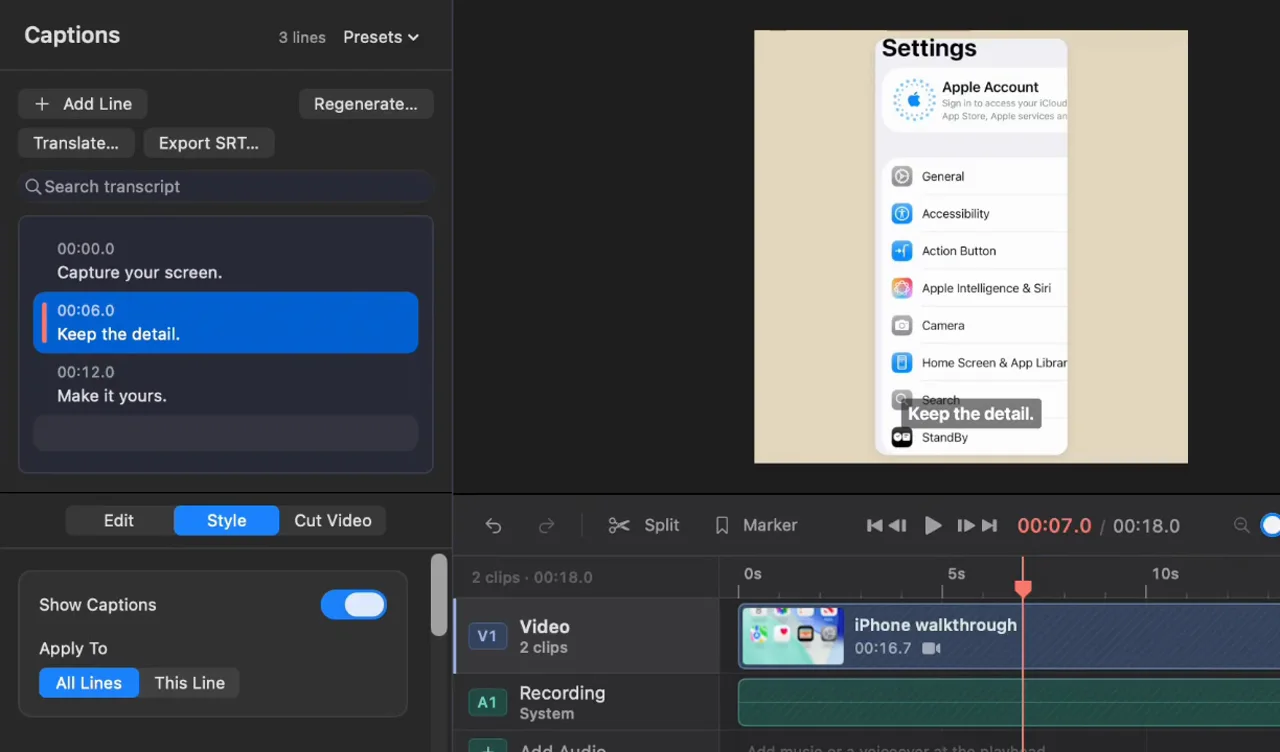
The caption editor, using sample text over Simulator footage. Captions have editable text, timing and styling.
Language support depends on Apple’s local models. The first run may need a model download, and older macOS versions can ask for Speech Recognition permission. You should check the transcript. Speech recognition still has the capacity to turn a perfectly ordinary sentence into something you’d rather not publish under your name.
Camera and audio
Webcam footage and microphone audio are kept on separate synchronised tracks, so recording your face doesn’t permanently glue it into one corner. You can change the camera’s position and crop afterwards, or use timed layouts that switch between the screen and camera.
Audio has separate microphone and system levels, imported tracks, voiceover recording and voice-processing controls. You can add music, fade it in and out, and duck it under narration. If you’ve already recorded the explanation separately, bring that file in and place it on the timeline.
Export
Export covers MP4 with H.264 or HEVC, plus ProRes MOV, at 720p, 1080p or 4K and 24, 30 or 60 frames per second. ProRes 4444 supports transparency. There are looping GIF exports too, up to 720p at 30 frames per second, without audio.
For an ordinary walkthrough, MP4 is probably where you’ll end up. ProRes is there if the recording’s heading into another editor.
Saved .captureproj projects retain the original footage and editing data, which is useful for coming back to a video later. It also means a project can contain things you’ve removed from the finished edit. Keep that in mind before handing somebody the whole package.
Koala has on-device text and face scans to help find things you might want to mask, including email addresses and API keys. Check the result yourself, because a scan can miss something. There’s a sanitised project export that renders the finished video into a fresh project without carrying over your original media or earlier edits.
Download
Recording, editing and exporting are free. The app doesn’t require an account or licence activation, and it sends no app analytics.
The website asks for an email address before downloading. That adds you to the Koala mailing list, and you can unsubscribe. The site also uses Google Analytics, separately from the app.
There are optional integrations for generated images and narration using providers such as OpenAI, Gemini and ElevenLabs. Those use your own API keys, stored in Keychain, and the provider can charge you. They’re optional extras. You don’t need them to record, edit, generate local captions or export a video. Local narration can use installed macOS voices as well.
Koala runs on macOS 14 Sonoma or later, on both Apple silicon and Intel Macs. The current release is 0.7, with a signed and notarised download and built-in updates.
You can download Koala at koalarecord.com. There are videos on the site showing the editor in use if you want a look first. If you give it a go, I’d like to hear what you’re recording and which bit of the workflow is still annoying you.
Comments